
The Payroll Module helps automatically calculate employee salaries based on fixed salaries, sales performance, profit, and bonuses for selling specific products.
Important: The Payroll Module is not an accounting or HR system. It is designed to simplify salary calculations and help monitor employee payments.
Main Screen
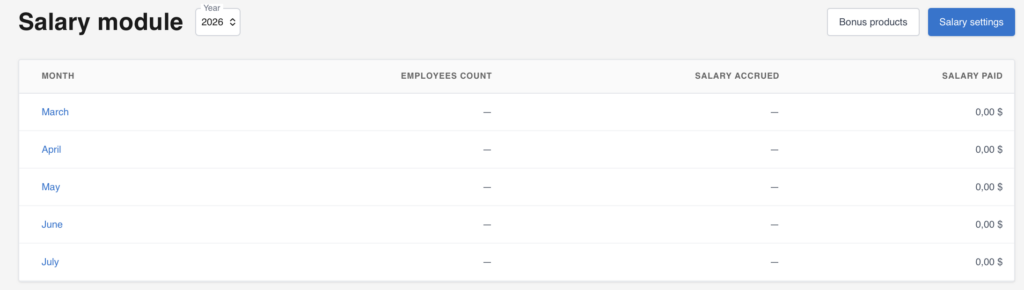
After opening the Payroll section, you will see a list of months for the selected year.
For each month, the following information is displayed:
- Number of employees
- Total salary accrued
- Total salary paid
This allows you to quickly review labor costs and outstanding salary obligations.
You can switch between years using the selector at the top of the screen.
Employee Payroll Settings
Before using the module, configure salary settings for each employee.
Click Payroll Settings.
For each employee, you can specify:
- Fixed monthly salary
- Bonus percentage
- Bonus type:
- Based on revenue
- Based on profit
Revenue-Based Bonus
The bonus is calculated as a percentage of the employee’s total sales revenue.
Profit-Based Bonus
The bonus is calculated as a percentage of the profit generated by the employee’s sales. After saving the settings, the system will automatically begin calculating salary accruals.
Bonus Products
You can also reward employees for selling specific products.
Open the Bonus Products section.
The current version supports up to 100 bonus products.
Adding a Bonus Product
Click Add Product and find the required item using the search function.
After selecting a product, the system displays:
- Selling price
- Cost price
- Profit margin
What Is a Profit Margin?
Profit margin shows how much profit is generated from a product sale relative to its selling price.
This helps determine a safe bonus percentage so that employee rewards do not exceed the profit earned from the product.
Setting a Bonus
Enter the bonus percentage that an employee will receive when selling the selected product.
If the bonus percentage exceeds the product’s profit margin:
- The field will be highlighted in red.
- The product will be marked with a warning in the list.
This prevents situations where bonuses exceed actual profits.
Viewing Payroll Accruals
Open the required month to view salary details.
For each employee, the following information is displayed:
- Accrued
- Paid
- Remaining balance
What Is Included in the Accrued Amount?
The accrued amount includes:
- Fixed salary
- Revenue-based or profit-based bonus
- Bonuses for selling bonus products
All calculations are automatically adjusted for product returns.
Employee Details
Click an employee to view detailed salary information.
Sales
Displays:
- Total sales amount
- Profit
- Number of sales receipts
- Number of items sold
Returns
Displays:
- Total return amount
- Number of returns
- Number of returned items
Bonus Products
Displays:
- Bonus product sales
- Bonus product returns
- Accrued bonuses
Payroll Accruals
Includes:
- Fixed salary
- Revenue-based or profit-based bonus
- Bonuses from bonus product sales
Adjustments
The Adjustment section allows you to manually change the final accrued amount.
You can add:
- Additional bonuses
- Incentive payments
- Penalties
- Any other manual adjustments
This is useful when salary calculations need to be modified without changing sales documents.
Paid
Shows the amount already paid to the employee.
Calculation Formula
A detailed calculation formula is displayed at the bottom of the employee card.
Fixed Payroll Calculation
A fixed salary is not distributed across working days.
The system always displays the current amount owed to the employee for the selected month.
This allows salaries to be paid:
- In full
- In installments
- Daily
- According to any custom payment schedule
Paying an Employee
To make a payment, click Pay.
Specify:
- The account to be used for payment
- The payment amount
After confirmation, the system automatically creates a transaction with the category Payroll. By default, the full outstanding balance is suggested. If you need to pay more than the current accrued amount, first create an adjustment.
Account Balance Control
After selecting an account, the available balance is displayed.
If there are insufficient funds:
- The system will show a warning.
- The payment can still be processed.
This supports businesses that allow negative account balances.
Mass Payroll Payments
To pay all employees at once, click Pay All next to the total amount due.
Select the payment account and confirm the operation.
The system will automatically create a separate transaction for each employee.
Balance Check During Mass Payments
The available account balance is displayed before the payment is processed.
If the balance is insufficient:
- A warning will be shown.
- The mass payment option will remain available.
After the operation, the account balance may become negative.
Deleting Payments
If a payment was created by mistake, it can be deleted through the transaction journal.
After deletion, the Payroll Module automatically recalculates:
- Paid amounts
- Salary accruals
- Outstanding balances
Important Notes
Payroll Is Calculated Based on the Salesperson
All salary calculations are based on sales documents and the value specified in the Salesperson field.
If a cashier processes the sale while another employee assists the customer, the actual salesperson should be selected when creating the sales document. Accurate salary calculations depend on the correct assignment of the salesperson.
Returns Are Assigned to the Original Salesperson
When a product is returned, the return is attributed to the employee specified in the original sale.
This remains true even if another employee processes the return.
Negative Bonus
If an employee has returns but no sales during a month, the bonus amount may become negative.
This typically occurs when a sale is made in one month and the return is processed in the following month.
This mechanism helps prevent abuse, such as artificially increasing sales at the end of a month to earn bonuses and then processing returns after bonuses have been paid.
Summary
The Payroll Module in AinurPOS provides a simple way to calculate employee compensation based on fixed salaries, sales performance, profit, and product-specific bonuses.
If you have any questions about the Payroll Module or need assistance with setup, please contact the AinurPOS support team. We will help you configure salary calculations according to your business requirements.