
The Production Module automates the manufacturing of finished goods, deducts raw materials, and posts completed products to inventory.
For example, if you bake bread, the system automatically deducts flour, eggs, and other ingredients, then adds the finished product — bread — to your warehouse.
What is a Tech Card
A production recipe is an instruction that defines what is being produced, from which materials, and in what quantities.
How to Create a Tech Card
- Go to the Production section
- Click Create Tech Card

Tech Card Fields
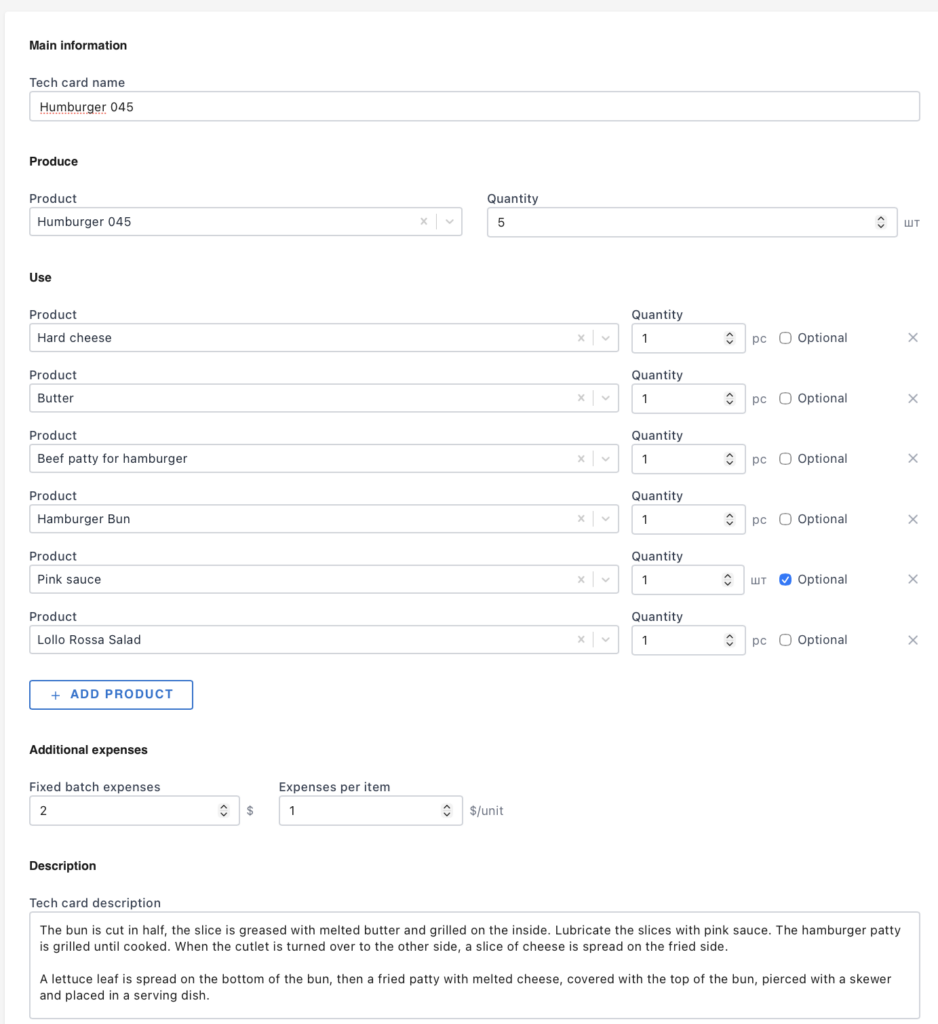
Name
Enter a clear and recognizable name to easily find the tech card in the list.
Produce
In this section, define:
- the finished product;
- the quantity to be produced.
Important: all materials and costs are calculated based on the specified output quantity.
For example, if the tech card is set to produce 10 loaves of bread, all ingredients must be calculated for 10 units.
Materials Used
Add all items required for production:
- select a product from the catalog;
- specify the required quantity.
Additional option:
Optional material — can be excluded during production launch.
Cost Price
The cost of finished goods is automatically calculated based on:
- cost of materials used;
- additional expenses.
Additional Expenses
Two types of additional costs can be included:
Fixed per batch
- independent of quantity;
- e.g., delivery costs for a batch.
Per unit costs
- calculated per produced unit;
- e.g., electricity or packaging per item.
These values can be adjusted when launching production.
Description
A free-text field for recipes, instructions, or internal notes.
Save
Click Save to create the tech card.

Tech Card List
After creation, the tech card will appear in the list.
Available actions:
- Edit
- Delete
- Copy
- Start production
Copying creates a duplicate tech card with a “copy” label.
Starting Production
Click the Start button next to the desired tech card.
Production Setup
Warehouses
Select:
- Source warehouse (materials deduction)
- Destination warehouse (finished goods receipt)
Quantity
Enter the amount of products to produce.
Materials Breakdown
The system automatically calculates required materials.
Key behaviors:
- insufficient stock is highlighted in red;
- production can still proceed even with shortages (stock may go negative);
- actual material usage can be manually adjusted;
- changes affect final cost;
- optional materials can be disabled.
Semi-Finished Products
If materials include items with their own tech cards:
- production can be launched directly from this screen.
A separate production flow will open for the semi-finished item.
Additional Expenses
Values from the tech card are prefilled but can be adjusted before launching production.
Information Panel
Displays:
- missing materials;
- tech card description.
Click Continue to start production.
Production Result
After completion, the system shows:
- quantity produced (link to receipt document);
- quantity of materials deducted (link to write-off document).
Automatically Created Documents
AinurPOS generates two documents:
- Material write-off document
- Goods receipt document
Each document includes:
- production date;
- tech card name;
- source and destination warehouses.
How to Reverse Production
To cancel production, delete:
- the material write-off document;
- the goods receipt document.
After that, production can be re-run with corrected parameters.